
Installation & Setup
How to import the NX10 SDK into your Unity project and manage your environments.
1. Import via Unity Package Manager
The SDK is distributed as a standard Unity Package. To install it:
- Open your Unity project.
- Go to Window > Package Management > Package Manager.
- Click the + icon in the top left corner.
- Select Add package from git URL... and enter:
https://github.com/nx10-devs/unity-sdk.git
2. Environment Management (API Keys)
When you sign up for NX10, your Organisation is equipped with Deployments in the Control Plane. It is highly recommended to create at least two Deployments: one for Staging (testing/development) and one for Production.
The NX10 Unity SDK provides a dedicated configuration window to safely manage these API keys without hardcoding them into your scripts. This ensures your development builds automatically send telemetry to your staging environment, keeping your production data clean.
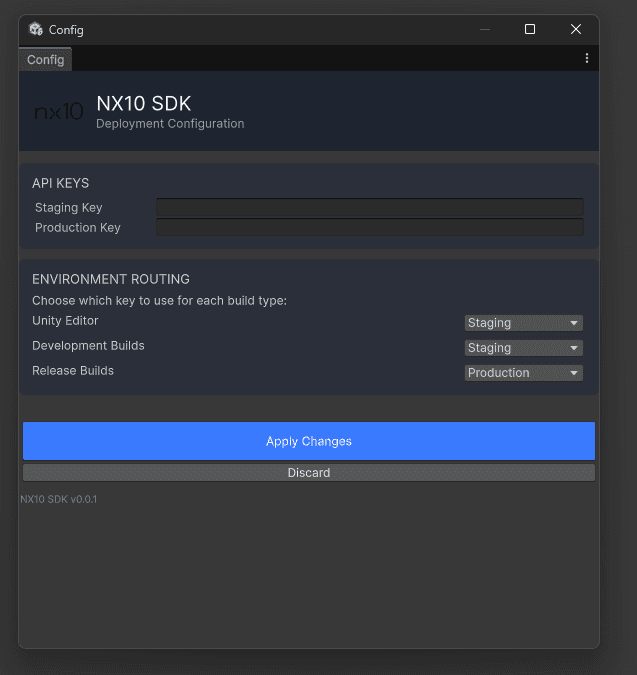
- Navigate to Window > NX10 > Configuration in the top menu bar.
- Paste your Staging Key and Production Key into the respective fields.
- Under Environment Routing, set the dropdowns to automatically route data based on the build type. For example, set
Unity EditorandDevelopment Buildsto route to Staging, andRelease Buildsto route to Production. - Click Apply Changes. The SDK will securely store these preferences and inject the correct key at runtime.
3. Scene Setup
The NX10 Manager acts as a singleton. You do not need to attach it to a prefab or add it manually to any scenes. Calling NX10Manager.Instance.StartSession() will automatically read your configured API keys, bootstrap the necessary hidden GameObjects to capture touch and sensor data, and mark them as DontDestroyOnLoad.